
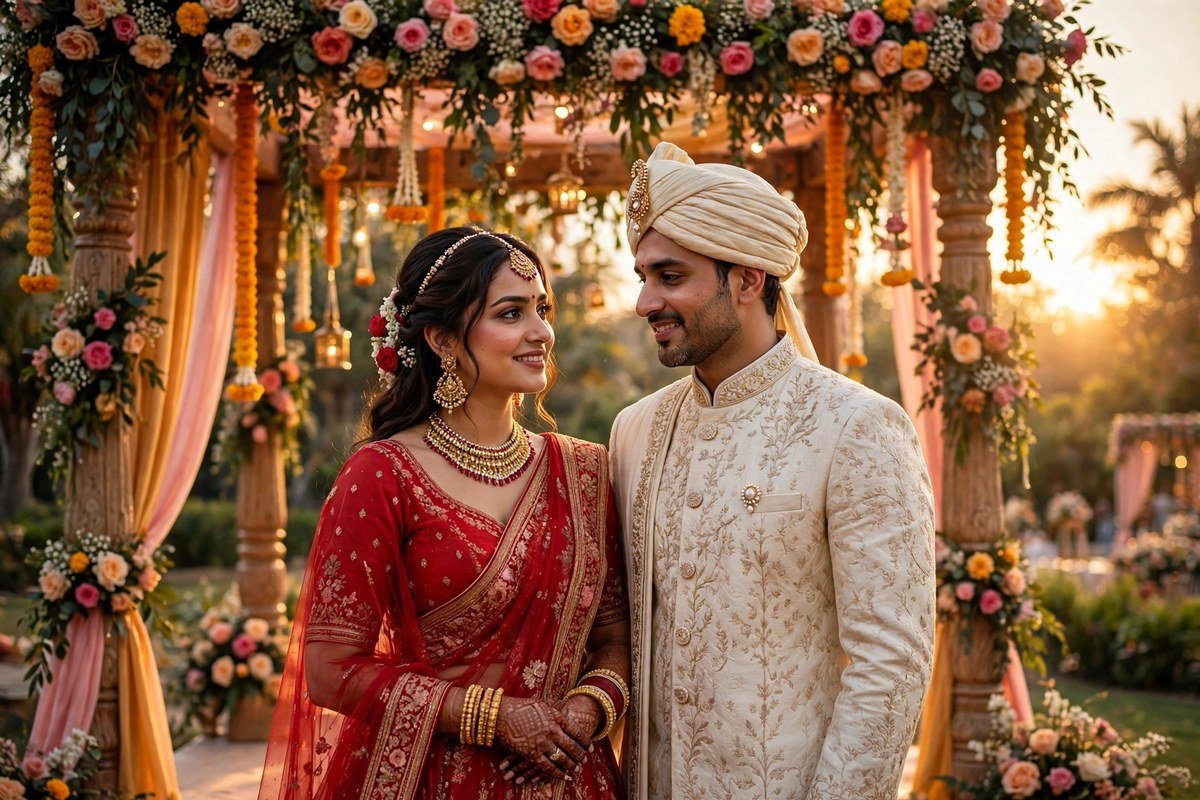
15 Free Lightroom Presets for Wedding Photography
Wedding photos are the hardest photos to edit well. A birthday photo can survive a heavy filter, but a bride’s face cannot. Push the warmth a little too far and the bridal makeup turns orange. Add too much contrast and the softness of a silk lehenga disappears. That is why choosing the right Lightroom presets for wedding photography matters more than collecting hundreds of them. The best wedding presets do quiet work — clean up mixed lights, keep skin honest, let the couple stay the focus of every frame.
This guide brings together fifteen free wedding looks we have tried on real Indian wedding pictures — haldi mornings, mehndi evenings, pheras at the mandap, and late-night receptions. Every style below comes with its own feel and the ceremony it suits best.
What Makes Good Lightroom Presets for Wedding Photography
Start with the skin. A wedding day throws every light at you in a few hours — yellow turmeric at haldi, green henna at mehndi, warm fire at the pheras, cold stage lights at the reception. A preset earns its place when faces still look like the people in them under all of that: warm where the light falls, gentle in the shadows, never chalky and never plastic. Watch the reds most of all — bridal makeup and red lehengas can take over a photo fast, so the looks we keep are the ones that hold reds back.
Next, think about the album as a whole. Hundreds of pictures across five or six functions should read as one story, not five separate shoots. The best Lightroom presets for wedding photography hand you a steady base and one slider that fixes most problems: under a yellow tent, cool the temperature a little; in harsh noon sun, bring the highlights down a touch.
Last, let the ceremony choose the look: pale ivory for a quiet bridal portrait, deep gold for the pheras, rich and dark for the reception stage. Get the pairing right and half the work is done.
The 15 Presets: Our Curated List
The fifteen looks below are grouped by ceremony. Pick one or two from each function, try them on your own pictures, and you will soon see which ones suit your camera, your light, and your taste.
1. Ivory Bridal Soft
Soft whites, gentle contrast, calm skin tones. Best for bridal portraits in a white or ivory lehenga, or a white gown, where the outfit should glow without the background going grey.
2. Haldi Sunbeam Yellow
Warm yellow-gold tones, bright highlights, a sunny joyful feel. Best for haldi photos, where turmeric, marigolds, and morning light are already yellow — the edit should celebrate that, not fight it.
3. Mehndi Green Warmth
Rich greens, warm skin, a little extra depth in the shadows. Best for mehndi photos — henna-covered hands, green outfits, evening garden light — where the green should feel lush, not dull.
4. Sacred Pheras Gold
Deep golden warmth, soft highlights, glowing skin. Best for pheras around the sacred fire, where flames and marigolds already give the scene a golden heart.
5. Royal Maroon Deep
Deep maroon and red tones, controlled saturation, warm glowing skin. Best for red or maroon bridal lehengas, and for reception stage photos where red dominates the frame.
6. Pastel Reception Glow
Soft pastels, lifted shadows, a light dreamy finish. Best for evening reception photos, especially when the decor is pastel and you want the album to feel soft and romantic.
7. Cinematic Vows Film
A soft film look, slightly faded blacks, warm mid-tones, a hint of grain. Best for couple shots and vows, where you want a timeless, movie-like feel, not a bright modern one.
8. Baraat Pink Pop
Bright pinks, lively colour, a little extra punch in the highlights. Best for baraat photos — dancing, dhol, pink outfits — where the energy should jump out of the frame.
9. Golden Mandap Light
Warm golden light, soft shadows, rich colour in flowers and fabric. Best for daytime mandap photos, where sun, flowers, and the sacred setting all deserve to shine.
10. Silver Moonlight Reception
Cool silver-blue tones, soft contrast, late-evening light. Best for night receptions and outdoor dinners under fairy lights, where you want a calm, elegant mood.
11. Heritage Palace Warm
Warm vintage tones, deep shadows, a slightly aged royal feel. Best for palace and heritage weddings, where old walls and grand settings suit a classic, old-world edit.
12. Rustic Outdoor Wedding
Natural greens, warm skin, a fresh earthy colour balance. Best for daytime garden and farmhouse weddings, where grass, trees, and open sky are part of the story.
13. Dreamy White Lace
Airy whites, soft highlights, a floating finish. Best for church weddings and white-gown brides, where lace and light should feel soft, not stark.
14. Emerald Sangeet Night
Deep emerald and teal tones, warm skin, a stage-like glow. Best for sangeet nights, where green and blue stage lights and dance performances need a bold, dramatic edit.
15. Timeless Black & White Vows
A clean black-and-white conversion, soft contrast, gentle grey tones. Best for the most emotional moments — the vidaai, a father’s tears, the couple’s first look — where colour would only distract.
How to Use These Lightroom Presets for Wedding Photography
Picking a preset is easy. Using it well across a whole wedding takes one extra habit: edit by function, not by photo. Start by choosing the preset that matches the light and the ceremony, not the look you wish the photo had. A haldi preset will not fix a reception photo; it will make it look yellow. Match first, then apply. The right Lightroom presets for wedding photography are chosen by ceremony: haldi gets yellow, pheras get gold, reception gets pastel or silver.
After applying the preset, check three things in this order. First, the skin: too warm, too cool, or about right? Adjust the temperature slider slightly until the skin looks like the people you photographed. Second, the outfits: is the red lehenga still red, or has it gone orange? Pull reds and oranges down slightly if the clothes are shouting. Third, the background: anything distracting, too bright, or too saturated? Calm it down and the couple will stand out straight away.
One last habit: always hold your edited photo next to the original. In Lightroom, press and hold the preview to flip between the two. If the edited version feels like a different wedding, ease off — drop the preset strength a little, or take contrast and saturation down a few points. And stick to one preset per function. A hundred haldi photos on the same base look will make the album feel like one story.
How to Install Lightroom Presets on Mobile and Desktop
Getting a preset into Lightroom is easier than it sounds — the steps just differ a little between phone and computer. Our guide to installing Lightroom presets on mobile walks through the whole thing with pictures, and here is the short version.
On your phone, save the preset file to the device, open it with the Lightroom app, and keep it as a new preset using the Presets panel. Name it after the style — Ivory Bridal Soft, say — and drop it into a Weddings group so it is easy to find later. On a computer, open Lightroom, switch to the Develop module, and bring the file in through the Presets panel. Lightroom files it under User Presets, and from then on it is one click away.
New to Lightroom? Grab it from the official Adobe Lightroom page and create a free account first. The free phone app covers everything in this guide. Once it is on your device, try one preset on a test photo from each function. And if you also shoot portraits outside weddings, our Lightroom presets for portraits guide covers everyday looks.
Tips for Better Wedding Edits
- Edit the couple first, the decor second. If the bride and groom look right, the rest usually follows. Never fix the background before the faces.
- Keep one preset per function. Haldi, mehndi, pheras, and reception each get their own base preset — one habit that makes a five-day wedding feel like one album.
- Batch edit, then fine-tune. Apply the preset to all photos from one function first, then adjust only the few that need it — one by one from scratch takes hours.
- Shoot in the best light you can find. No preset can rescue a photo taken under harsh noon sun or in a dark, grainy hall — window light, open shade, and the golden hour do more than any preset ever will.
- Zoom right in before you call it done. At 100%, check the eyes, the skin texture, the jewellery, and the henna lines.
- Keep the tweaks you love. When you change a preset and the result feels right, save it under your own name — that becomes your wedding look for the next shoot.
Frequently Asked Questions
Are these Lightroom presets for wedding photography really free?
Yes — every one of the fifteen looks here is free to download and use on your own pictures, including wedding photos you hand over to clients. There is no trial clock and no payment page anywhere in the process.
Do these wedding presets work in the free Lightroom app?
Yes, they run in the free Lightroom phone app on Android and iPhone, and on Lightroom desktop too. You do not need a subscription to put a preset on a photo or to move exposure, warmth, and contrast around.
Which preset is best for a full wedding album?
No single preset fits a whole wedding — every function has different light. Start with Golden Mandap Light for daytime, Pastel Reception Glow or Silver Moonlight Reception for the evening, and Timeless Black & White Vows for the emotional moments — those four cover most of a wedding week.
Why does a preset look different on my wedding photo than on the example?
Every venue has its own light, its own camera, and its own skin tones. Think of a preset as a starting recipe: fit it to your ceremony and your light, nudge the temperature and exposure a little, and it will fall into place on your photo.
Start With One Wedding Album Today
You do not need all fifteen today. Take one function from your last wedding — haldi, mehndi, or the reception — and try its preset on five photos. Spend a few minutes on the skin and the light, then hold the results next to the originals. Once the album starts feeling like one story, head over to the PresetsEditor homepage and pick your next collection.



2 Comments