Best Lightroom Presets for Winter Photography
Winter is the hardest season to photograph well, and the easiest to get wrong. Your camera sees a bright field of snow and panics, so the white comes out dull and grey, the sky turns flat, and the warm glow of a window looks muddy next to it. Lightroom presets for winter photography fix that balance in one tap, lifting the whites back to clean snow while keeping the shadows cool and the skin tones natural.
This guide rounds up 12 presets built for cold-weather shooting, from crisp blue mornings to candlelit evenings indoors. Each one tackles a different winter problem, so you can pick the look that matches your scene. All of them work on desktop and mobile Lightroom, and most need only a small exposure tweak after you apply them.
Why Winter Photos Need Their Own Presets
Snow fools every camera meter. The sensor expects an average scene, so a frame full of white gets underexposed and the snow turns grey-blue. A generic summer preset will often push the whites too far the other way, blowing out detail. Winter presets are tuned for this exact problem: they raise the whites carefully, protect the highlights, and add just enough cool tone to the shadows so the scene still feels cold without looking lifeless.
Winter light also changes fast. A morning shoot can start in soft blue shade and end in harsh sun bouncing off ice. A good winter preset keeps the contrast gentle, so you can use the same look across a whole morning without the photos clashing.
1. Clean Snow White
The workhorse for anyone who shoots snow all day. It lifts exposure slightly, pulls the whites toward true white, and cools the shadows just enough to keep the scene fresh. Faces stay warm and natural, which most snow edits get wrong. Use it on bright midday shots where the snow looked grey straight out of camera.
2. Frosty Blue Morning
Early winter mornings have a soft blue cast that most edits wash away. This preset keeps that blue in the shadows and sky while warming the highlights a touch, so the first light on the snow feels real. It suits quiet landscapes, empty parks, and misty fields. Leave the temperature slider alone afterward, or the blue will drift toward purple.
3. Alpine Bright
Mountains and ski slopes need more punch than a flat snowfield. Alpine Bright adds gentle contrast and a little clarity to bring out ridges, tracks, and texture in the snow without turning the sky harsh. The extra definition also helps skiers stand out against a bright background. Lower the clarity slightly for portraits.
4. Cozy Cabin Warmth
Step inside and the problem flips: now the light is warm, dim, and orange from lamps and fireplaces. This preset leans into that warmth, deepening the amber tones and softening the shadows so a cabin interior feels inviting. It is the right pick for hot drinks, blankets, and firelight. Lift the shadows slightly so the corners do not go black.
5. Christmas Lights Glow
Holiday lights are tiny points of color in a dark frame, and most edits either dull them or blow them out. This preset protects the highlights so each bulb keeps its color, then warms the midtones so the scene glows instead of looking cold and flat. Use it for tree photos, street decorations, and evening portraits near lights.
6. Frosted Forest
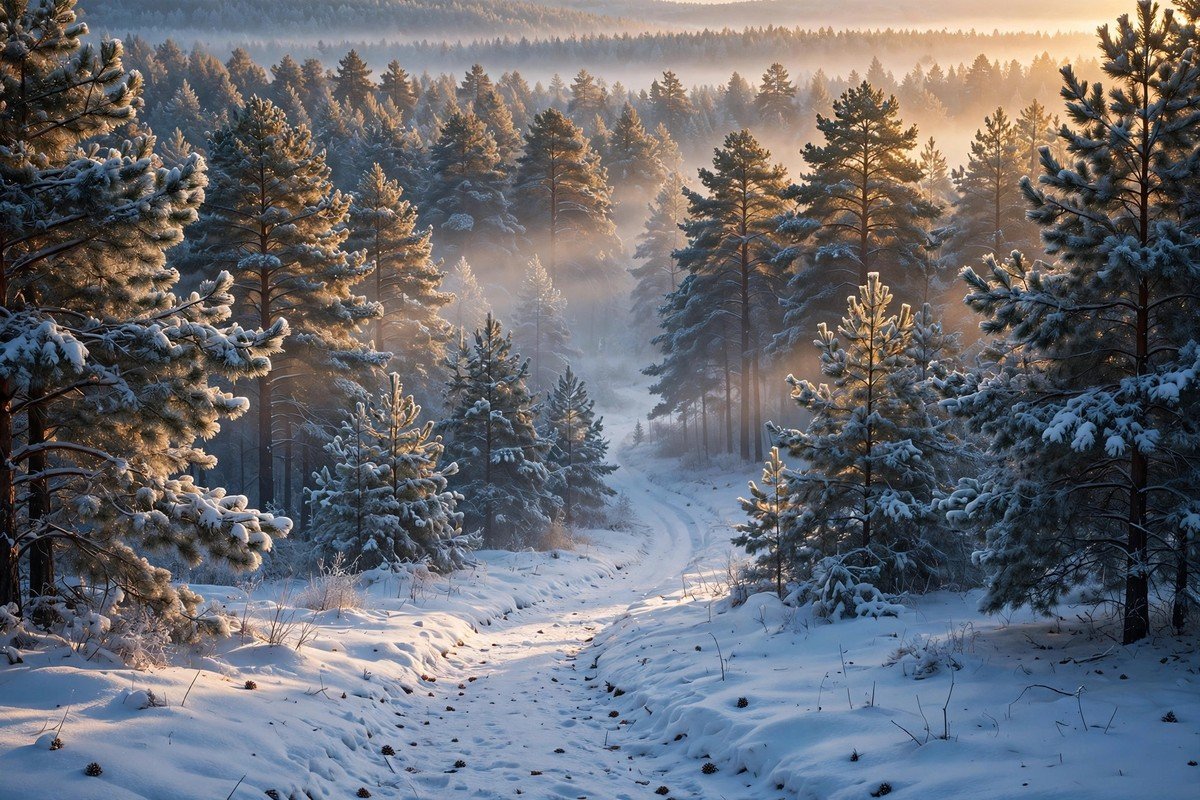
Snow-covered trees lose their green fast in a plain edit, turning grey and dull. Frosted Forest keeps a hint of deep green in the pines while cooling the snow around them, so a winter forest still reads as a forest. A touch of dehaze helps on foggy mornings when the trees fade into white.
7. Soft Winter Portrait
Portraits in snow need the opposite treatment from landscapes: the skin has to stay warm while everything else stays cool. Soft Winter Portrait does that split, warming the skin tones and softening the contrast on faces, while leaving the snow and sky cool and bright. It suits family photos, couples, and kids bundled up in scarves and hats.
8. Icy Minimal
Some winter photos are at their best with almost nothing in them: one tree, one fence post, one person walking through white. Icy Minimal strips the color back to a near-monochrome cool palette, with clean whites and soft grey-blue shadows. It suits fine-art style shots and calm, quiet feeds. Avoid it on busy scenes, where the flat tones can feel empty instead of minimal.
9. Golden Winter Hour
The hour before sunset in winter is short and golden, and it deserves a preset that protects it. Golden Winter Hour warms the highlights and adds a soft glow to the low sun, while keeping the snow shadows cool so the contrast between warm light and cold shade stays visible. Shoot into the light for the strongest effect, and watch the highlights so the sun does not blow out.
10. Snowy Street Cool
City snow looks different from country snow: there are buildings, cars, signs, and people, and the color palette is messier. Snowy Street Cool tidies that up with a clean, slightly desaturated cool tone that makes urban winter shots feel crisp and modern. It keeps reds and yellows from overpowering the frame when shop signs and traffic lights crowd the scene.
11. Warm Hot Cocoa
This is the preset for the small, warm moments of winter: hands around a mug, steam rising, a window fogged with cold outside. Warm Hot Cocoa deepens the browns and ambers, softens the light, and adds a gentle vignette so the eye goes straight to the subject. It is best on close-ups and drink photos, where the warmth is the whole point.
12. Northern Lights Night
Night winter photography is a different skill, and this preset is built for it. It lifts the shadows gently so stars and aurora colors stay visible, keeps the noise under control with a cooler tone, and protects the deep blues of a night sky. It works on aurora shots, snowy night streets, and long exposures under moonlight. Always use a tripod, because no preset can rescue a shaky night photo.
How to Pick the Right Winter Preset
Start with the light, not the subject. If the scene is bright snow in open sun, pick a preset that protects highlights, like Clean Snow White or Alpine Bright. If the scene is indoors or near lights, pick one that leans warm, like Cozy Cabin Warmth or Christmas Lights Glow. For portraits, always choose a preset that keeps skin warm, even if the background is cool.
Then check the mood you want. A bright, cheerful feed suits the clean and golden presets, while a calm, editorial feed suits Icy Minimal and Frosted Forest. If you are unsure, apply two or three presets to the same photo and compare them side by side. For a different season, see the best Lightroom presets for travel for comparison.
How to Install Lightroom Presets on Mobile and Desktop
Installing a preset takes about a minute, and the idea is the same on both platforms. On desktop Lightroom, open the Presets panel, click the three dots, choose Import Presets, and select the .xmp files you downloaded. On mobile, open Lightroom, tap the Presets tab on a photo, tap the three dots, and choose Import Presets from your files. For a full step-by-step walkthrough, follow our guide to installing Lightroom presets on mobile.
After installing, apply a preset to a copy of your photo first, so you can compare it with the original. Then check the exposure, because snow scenes often need a third of a stop up or down after the preset, and check the white balance, because mixed indoor and outdoor light can pull the colors off. Presets are a starting point, not a finish line. You can try these edits yourself in Adobe Lightroom.
Tips for Better Winter Photos
- Expose for the snow, not the subject. Add a little positive exposure compensation when you shoot, so the camera does not turn the snow grey in the first place.
- Watch the histogram, not the screen. A bright screen in sunlight lies about exposure; the histogram shows whether your whites are actually clipping.
- Keep your battery warm. Cold drains batteries fast, so carry a spare in an inside pocket close to your body.
- Protect your lens from condensation. Moving from cold air into a warm room fogs the lens, so let the camera warm up slowly in its bag.
- Keep RAW switched on where possible. A RAW file keeps far more detail in bright snow than a JPEG, so you can pull back blown highlights later.
- Do not overdo the blue. A cool winter look is good, but push the temperature too far and skin turns grey and snow turns purple.
Why Does My Snow Look Grey in Photos?
Your camera meter aims for a middle grey average, so a frame full of bright snow gets underexposed and the white turns grey. Fix it by adding positive exposure compensation while shooting, usually between +0.7 and +1.3 stops, then use a winter preset that lifts the whites gently without clipping the highlights.
Can I Use These Presets on My Phone?
Yes. All 12 presets in this list work in the free Lightroom mobile app, and the install takes about a minute. Import the preset files, open a photo, tap Presets, and choose the one you want. Phone cameras struggle with snow exposure even more than dedicated cameras do. For portraits, compare them with our best Lightroom presets for portraits to find a skin-friendly starting point.
Do Winter Presets Work on Summer Photos?
They will apply, but the result usually looks wrong. Winter presets cool the shadows and lift the whites, which makes green grass look washed out and skin look cold. Use a preset made for the season you shot in, and keep your winter presets for snow, frost, and cold light.
How Do I Stop Snow From Blowing Out?
Blown-out snow has no detail left to recover, so prevention matters more than editing. Check the histogram while you shoot and keep the highlights just below the right edge. In Lightroom, pull the Highlights slider down and the Whites slider up slowly until the snow shows texture again. A preset like Clean Snow White helps, but it cannot rebuild detail that was never recorded.
Final Thoughts
Winter photography rewards patience and a light touch in editing. Pick a preset that matches your light, fix the exposure first, and let the snow stay white while the shadows stay cool. Try two or three of the presets above on your favorite winter shot today, and you will see how quickly a grey, flat snow photo turns into the scene you remember.