
Gemini Photo Edit Code Copy
I keep a small note on my phone with the photo prompts I use most, and the Gemini ones are the most copied of all. Not because they are magic words — there is no secret code — but because a well-written prompt pasted into Gemini turns a dull photo into a finished one in under a minute. If you have ever typed “make this photo better” into Gemini and got back something strange, this guide is for you.
A quick note before we start: Gemini does not use official “codes” for photo editing, and any site offering a download link for Gemini edit codes is not selling you anything real. What works is plain-language prompting — describing the finished photo you want. Everything in this guide is that kind of prompt, written by me, ready to copy.
What Gemini Photo Editing Actually Does
Gemini’s photo editing, built on Google’s image model, lets you upload a photo and describe the change in words. You can ask it to change the lighting, swap a background, remove an object, restyle a portrait, or fix an old damaged photo. It rebuilds the image from your description, so the quality of your words decides the quality of the result. Vague words give vague results; concrete words — “warm golden evening light”, “clean white wall”, “soft background blur” — give you something you can actually use.
The workflow is always the same: open Gemini, upload your photo, paste a prompt, and look at the result. If it is close but not right, describe the one thing to fix — “keep the face the same, only brighten the background” — and ask again.
The Prompt Formula I Use
Every prompt in this guide is built from four pieces, in this order: subject, light, setting, and style. Subject is who or what is in the photo. Light is the time of day and the quality of the light. Setting is the background or the place. Style is the finish — photorealistic, cinematic, warm, clean. When a prompt goes wrong, it is almost always because one of these four pieces was missing or unclear.
Two words are worth adding to almost every prompt: “photorealistic” and “keep the face unchanged”. The first stops the result from drifting into a painting. The second protects the person in the photo, which matters more than any other detail.
Copy-Paste Prompts for Portraits
1. The Clean Portrait Fix
“Improve this portrait: soft natural light on the face, clean background with gentle blur, natural skin tones, sharp eyes, balanced colours, photorealistic, keep the face unchanged.”
This is the prompt I paste most often. It fixes the three things phone portraits get wrong — harsh light, messy backgrounds, and dull skin — without touching the person’s features. Use it on any portrait that is good but not quite finished.
2. Golden Hour Portrait
“Turn this portrait into a golden-hour photo: warm low sunlight from the side, soft glow on the skin, warm amber background, gentle shadows, cinematic and warm, photorealistic.”
If your photo was taken at noon, this prompt rebuilds the light as if it had been taken an hour before sunset. It suits outdoor portraits, travel photos, and any picture where you want warmth instead of flat daylight.
3. Studio-Style Portrait
“Turn this photo into a clean studio portrait: soft even lighting, plain neutral background, sharp focus on the eyes, natural skin texture, professional and polished, photorealistic.”
Perfect for profile pictures and job photos. It removes the clutter of a real room and replaces it with the calm, even light of a studio, while keeping the person looking like themselves.
4. Black and White Portrait
“Convert this portrait to black and white: rich contrast, deep blacks, soft highlights, sharp eyes, film-like grain, timeless and elegant, keep the face unchanged.”
Black and white forgives a lot — bad colour, mixed lighting, a distracting background — and it makes a portrait feel deliberate. This prompt keeps the contrast rich instead of flat grey.
Copy-Paste Prompts for Backgrounds
5. Background Swap to Nature
“Keep the person exactly as they are and replace the background with a soft green garden: blurred trees, gentle sunlight through leaves, natural colours, photorealistic.”
Background swaps work best when you tell Gemini what to keep. Start with “keep the person exactly as they are”, then describe the new background. Gardens, beaches, and city streets at dusk are the most forgiving choices.
6. Background Swap to a City Evening
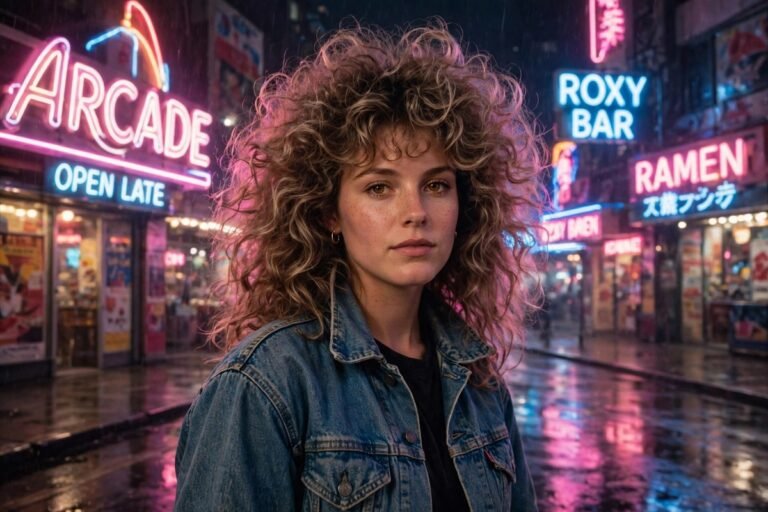
“Keep the person exactly as they are and replace the background with a city street at dusk: warm shop lights, soft bokeh, deep blue evening sky, cinematic mood, photorealistic.”
City-evening backgrounds make ordinary portraits look like travel photos. The bokeh — those soft circles of light — hides a multitude of sins in the original background.
7. Remove Distractions
“Remove the distracting objects from the background of this photo — bins, wires, strangers — and fill the space naturally, keep the main subject unchanged, clean and photorealistic.”
Every good photo has something in it you wish was not there. Name the objects you want gone, and Gemini will rebuild the space behind them. Check the edges of the subject afterwards, because that is where removals sometimes leave a smudge.
Copy-Paste Prompts for Festive and Travel Photos
8. Festival Glow
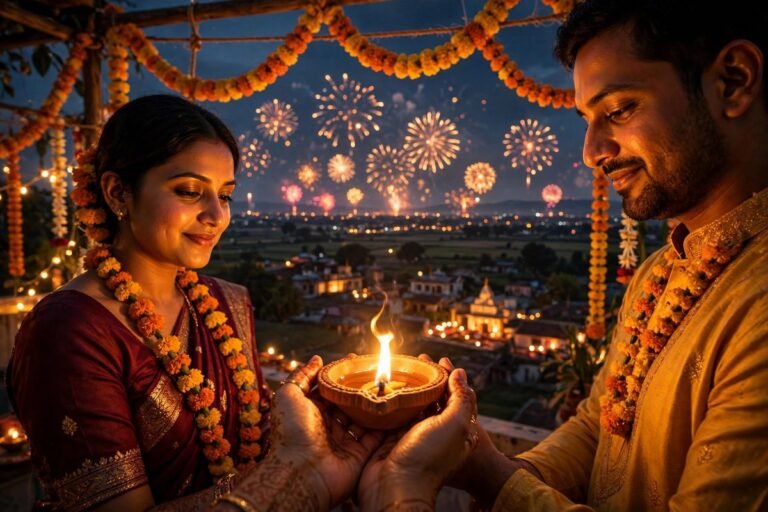
“Turn this photo into a warm festive shot: golden fairy lights softly glowing in the background, warm light on faces, rich celebratory colours, joyful mood, photorealistic.”
Festival photos are usually taken after dark, so they come out too dark or too yellow. This prompt balances the warm light and keeps faces bright, and it works for Diwali, Eid, weddings, and birthday evenings alike.
9. Travel Photo Rescue
“Brighten this travel photo: clear blue sky, vivid colours, sharp details on the landmark, natural light, remove haze, cheerful holiday mood, photorealistic.”
Holiday photos taken through haze, glass, or bad weather all need the same thing: clearer air and stronger colour. This prompt is the one I paste on every disappointing holiday snap.
10. Couple Portrait, Soft and Warm
“Turn this couple photo into a soft, warm portrait: gentle evening light, both faces evenly lit, soft background blur, warm romantic tones, natural smiles unchanged, photorealistic.”
Couple photos fail most often on uneven light — one face in sun, one in shade. This prompt evens the light and warms the whole frame, and it pairs well with our AI photo prompts for couple portraits if you want more ideas for the same kind of shoot.
11. Old Photo Restoration
“Restore this old photo: remove scratches, stains and fading, sharpen faces, restore natural colours, gentle warm light, keep every person looking exactly like themselves, photorealistic.”
Old family photos are the most rewarding thing Gemini can edit. Scan at the highest quality you can, paste this prompt, and check the faces closely — a good restoration repairs the damage without inventing a new person.
How to Get Better Results, Round by Round
The first result is rarely the final one, and that is normal. The trick is to fix one thing at a time. If the light is right but the background is wrong, your next prompt should say only that: “keep everything the same, only change the background to a soft garden”. If the face shifted, say: “restore the face exactly as in the original photo”. Short corrections work because Gemini can hold the previous version in mind and change just the piece you named.
When a prompt fails twice, shorten it. Long prompts with five ideas in them tend to produce a photo that does half of each idea badly. Split it into two steps instead: first fix the light, then change the background.
Mistakes That Ruin Gemini Photo Edits
- Asking for a new face. “Make her smile” or “make him look younger” will reshape the person. Describe light and colour, not new expressions.
- Editing the only copy. Keep a safety copy before you start. A Gemini edit can lock in permanently, and the untouched original is the version you will be glad you saved.
- Trusting “edit codes” from random sites. There are no official Gemini photo edit codes. A prompt is words, not a code, and anyone selling a download is selling nothing.
- Starting from a tiny, blurry photo. Gemini can sharpen, but it cannot invent detail that was never there. Use the highest-quality original you have.
- Skipping the zoom check. Before you share, zoom in on hands, eyes, and the edges of the subject. Those are the places AI edits most often go wrong.
Gemini Prompts vs Lightroom Presets
Gemini and Lightroom do different jobs, and I use both. Gemini is best when the photo needs something changed — a background, a missing light, a damaged old print. A Lightroom preset is best when the photo is already good and just needs a consistent look: warm skin, golden tones, a film feel. If your photo is well shot and only needs colour, start with presets; if it needs rebuilding, start with Gemini. Our comparison of Lightroom presets vs filters explains the colour side of that choice in more detail.
Frequently Asked Questions
Is Gemini photo editing free?
Basic photo editing in Gemini is free with a Google account, though some advanced features and higher limits sit behind paid plans. The prompts in this guide work on the free version.
Do I need to install anything?
No. Gemini runs in the browser and in the Google app. You upload a photo, paste a prompt, and download the result. Nothing to install, and no files to manage.
Can Gemini edit a photo without changing my face?
Usually, yes — if you say so. Add “keep the face exactly as it is” or “keep the person unchanged” to your prompt, and check the result by zooming in before you share it.
What size photo should I upload?
The largest original you have. A full-resolution photo from your phone gives Gemini far more detail to work with than a compressed copy from a chat app, and the result will look noticeably sharper.
Can I use these prompts for business photos?
Yes, for your own photos. Product shots, profile pictures, and social media images all work well. Just remember that AI-edited images of real products should still show the product honestly.
Final Thoughts
There is no secret code to Gemini photo editing — there is only a clear sentence about the photo you want. Keep your prompts short, name the light and the background, protect the face, and fix one thing per round. Save the prompts in this guide somewhere you can reach them, because the next time a good photo comes out a little flat, you will want them in seconds, not after a search. Copy, paste, check, and share.